How It Works
Content Retention Manager for Confluence handles information governance for Atlassian Confluence in the cloud. Keep what you need and remove what you do not.
- Retain content for a set or indefinite time.
- Purge content when it is no longer needed. Once purged, content cannot be recovered by admins or users, satisfying "non-discoverable" requirements for legal and compliance purposes.
Retention Statuses and Discoverability
Each piece of content has one of the following retention statuses, which reflect where it is in its lifecycle:
| Retention Status | Definition | Visibility / Discovery |
|---|---|---|
| RETAINED | Content is in an active state and available. This means it hasn't expired per your policy or any extensions. | Accessible / Discoverable |
| EXTENDED | Content that has a date-based extension applied, setting an explicit future expiration date that overrides the content's retention policy. | Accessible / Discoverable |
| EVERGREEN | Content that has an indefinite extension applied. It never expires against a retention policy and will not be automatically removed. | Accessible / Discoverable |
| ENDING | Content is nearing the end of its retention period. Determine whether it needs an extension, or can be archived, deleted, or purged. | Accessible / Discoverable |
| ENDED | Content has expired against your retention policy. When the retention period ends, content is first deleted (recoverable) and then purged (irrecoverable) after a delay you configure in your Policies. | Deleted: Accessible by space admins/Discoverable by space admins; Purged: Not accessible/Not discoverable |
As content moves through its retention lifecycle, it may also change state in Confluence. For legal and compliance purposes, content is considered discoverable any time anyone, including an admin, can access or recover it:
| Content Status | Visibility | Discoverable |
|---|---|---|
| Current |  Anyone with access can view Anyone with access can view |
Yes |
| Archived | Accessible via direct links to anyone with read access |
Yes |
| Trashed |  Not generally visible; recoverable by Space and Confluence Admins Not generally visible; recoverable by Space and Confluence Admins |
Yes |
| Purged | No longer visible or recoverable. Any trace of the content is removed. |
No |
Archiving and deleting content are not enough. As long as someone can recover a page or blog post in Confluence, that content remains discoverable for legal and compliance purposes. Actively maintain a policy that accounts for what should and should not be discoverable, in consultation with your Legal, CISO, and HR teams.
Your Data within Content Retention Manager
Content Retention Manager for Confluence runs directly on the Atlassian Forge platform in your Confluence Cloud instance and does not transmit or retain any of your data, content, or user information on any external systems. The app is wholly contained within your Atlassian Cloud instance. When content is purged by Content Retention Manager, it cannot be recovered by users or admins. For more details, see the app's Privacy & Security page on the Atlassian Marketplace.
Recommended First Steps
Before getting started, we recommend you read through our content on Data Retention Policies and Management Best Practices and familiarize yourself with any Data Retention Laws and Regulations your team may need to comply with.
Info
We recommend you review all policies, practices, and processes related to this app with your company's legal representative before you begin enforcing any retention policies. This will help you remain compliant with any applicable laws or regulations.
Before deploying, confirm the following:
- You have a defined company retention policy ready to configure in the app.
- You have an active Atlassian Confluence instance (Free, Standard, and Premium editions all work with Content Retention Manager).
Warning
We recommend testing Content Retention Manager for Confluence on a test or development instance of your Atlassian Cloud Confluence to get familiar with its functionality and to ensure that any automation you enable performs as expected before deploying to your production instance.
Key Functions of Content Retention Manager
Info
Content Retention Manager for Confluence is available in both Lite and Standard editions. Refer to Edition Comparison for details on their differences.
| Function | Use |
|---|---|
| Content Audit | View all content and its current retention status. Admins can archive, delete, purge, or extend the retention period of individual or multiple items from this view. |
| Policies | A policy defines the retention period for content. |
| Default retention | A default retention policy applies to all content in the absence of retention rules and extensions. |
| Retention Rules | Retention rules associate policies with entities such as spaces, users, groups, and classification levels. When a rule applies, the associated policy supersedes the Default Retention. |
| Classification Levels | A categorization that defines the information security sensitivity of content. |
| Classification Rules | Classification Rules associate Classification Levels with spaces. When a classification rule applies, the matching level is applied to content within the space and overrides the Default Classification. |
| Extensions | Extensions let content persist beyond its normal retention period, either to a specific date or indefinitely. An extension applies to individual items and overrides all policy settings. |
| Audit Log | The audit log helps you keep track of who updated policies and when. The log also records when content is archived, deleted, or purged by user or automation. The audit log is how you monitor and keep a record of your retention policy in action. |
| Automation | Automation enforces your retention policies on a schedule, archiving, deleting, and purging content automatically. Pages with content restrictions are invisible to the app and cannot be automated unless the app has been granted view access. See Restricted Pages in the Administrator's Guide. |
Accessing Content Retention Manager
In the Confluence left side navigation, select Apps, then select Content Retention Manager. Standard edition is available to all users; Lite edition restricts access to admins only.
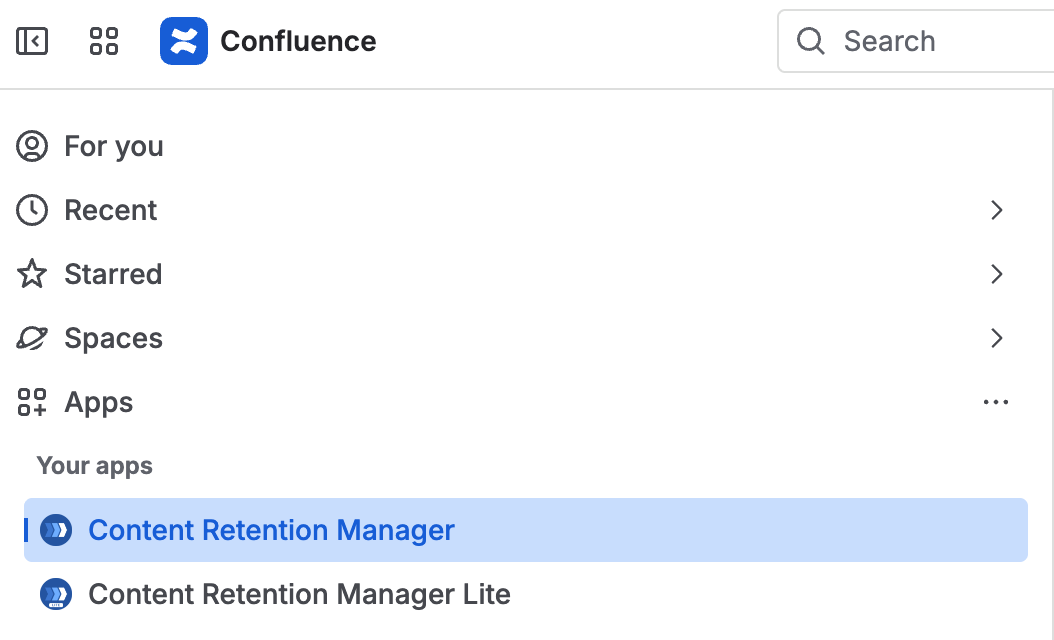
Opening Content Retention Manager from the Confluence Apps menu
What's Next?
- Setting up for the first time? Follow the Quick Start.
- Managing policies and configuration? See the Administrator's Guide.
- Using the app as a non-admin? See the User's Guide.